
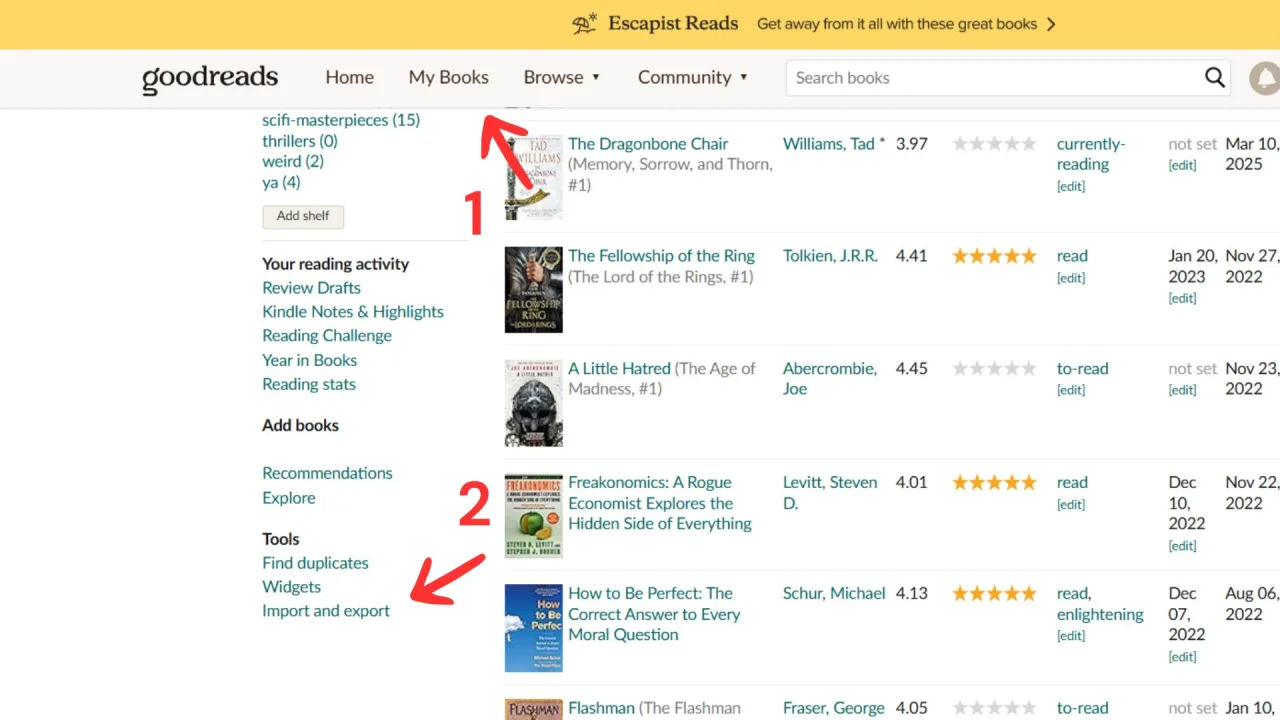
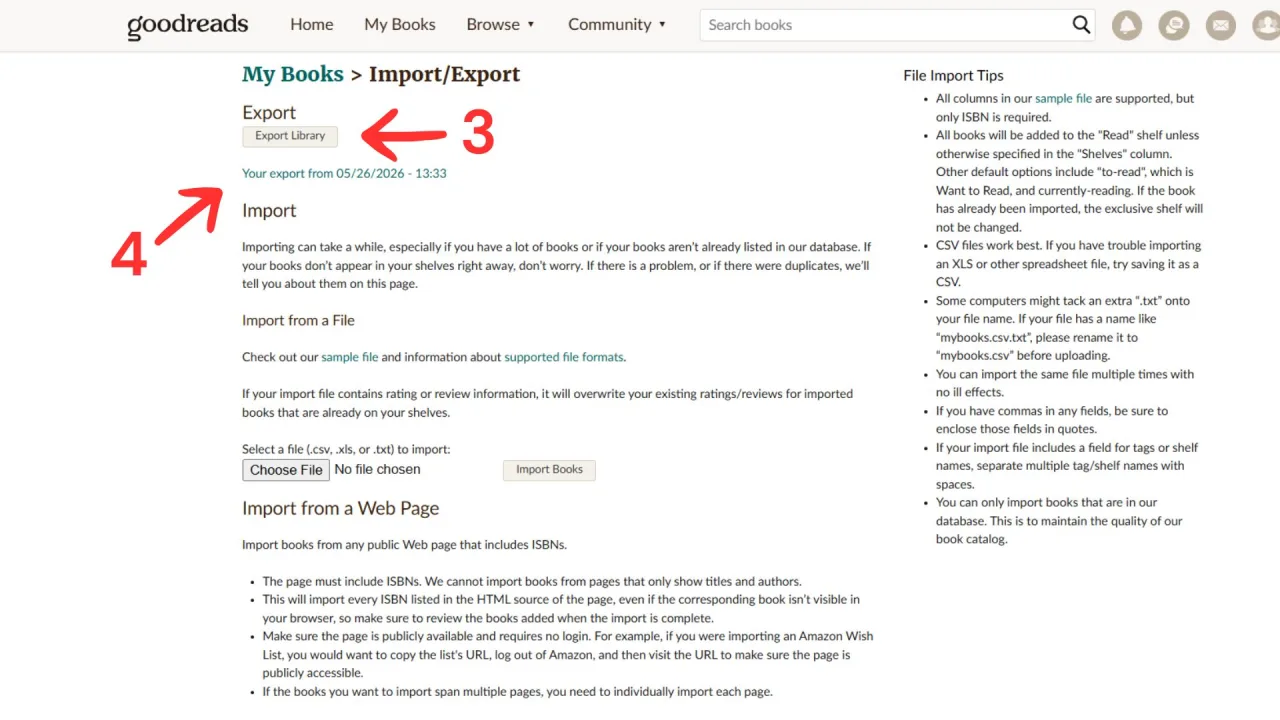
To export your Goodreads library, open Goodreads on a computer, go to My Books, and click Import and export under Tools on the left. Under Export, click Export Library. When a link reading "Your export from" appears, click it to download a CSV file of every book on your shelves.
That file is what you take to another app. This guide covers the export on a computer and on a phone, the separate full-data download Goodreads offers, what to do when the export fails, and how to bring the file into Seekquel.
Export your library on a computer
Goodreads only offers the library export on its desktop site.
1. Open Goodreads and go to My Books.
2. Under Tools on the left, click Import and export.
3. Under Export, click Export Library.
4. Wait while Goodreads builds the file. A large library can take a few minutes.
5. When a link reading "Your export from [date]" appears on the same page, click it to save the CSV.
The file saves as something like goodreads_library_export.csv. It holds one row per book, with your rating, review, shelves, dates read and added, and read count.
Export your library on a phone
Goodreads' own help page lists the library export as desktop only, so the app does not offer it. If you have no computer to hand, open goodreads.com in your phone's browser, switch it to the desktop site (in the browser menu, usually "Desktop site" or "Request desktop website"), and follow the steps above.
If the download link does nothing on your phone, the file may have saved to your Downloads folder without telling you. Look there before you run the export again.
The other download: all your Goodreads data
Goodreads also offers a full copy of your account data. It is a different thing from the library export, and it is not the file other reading apps import.
In the app: More, then Settings, then Account Settings. Tap Privacy, scroll down, tap Request to download my Goodreads data, then Submit request.
On the web: your profile photo, then Account settings, then Account & notifications. At the bottom, select Download my Goodreads data, then Submit request.
Goodreads then emails you a link to confirm the request, valid for 5 days. When the data is ready, a second email arrives with a download link that lasts 90 days. The download is a .zip of JSON files, which you can open in a web browser to read. Use it as a backup. For moving your books, use the CSV from Export Library.
When the export does not work
No Export Library button. You are on the app or the mobile site. Use a computer, or switch your phone's browser to the desktop site.
The link never appears. Leave the page open for a few minutes, then refresh it. Large libraries take longer.
ISBNs look broken, like 9.78E+12. A spreadsheet reformatted them. Download the file again and read the ISBN note below before editing it.
What comes across to Seekquel
Seekquel reads the Goodreads CSV and rebuilds your library from it. From a standard export it keeps:
Each book, matched to a real edition
Your star ratings
Your written reviews
Reading status: read, currently reading, or want to read
Your custom shelves and tags
Date read and date added
Re-read counts, page counts, and series position
Optional: clean up the CSV first
You can import the file as it is and it will work. A few minutes of cleanup gives you tidier shelves and better stats. Open the file in Google Sheets or a plain-text editor before you start.
The ISBN trap most guides ignore
Goodreads writes ISBNs like ="9780123456789". That ="..." wrapper stops a spreadsheet from reading the number as math.
Open the file in Excel and save it, and Excel strips the wrapper. The ISBN becomes 9.78E+12, and a mangled ISBN is a book that will not match.
Three safe ways to edit:
Use Google Sheets instead of Excel.
Use a plain-text editor like Notepad or VS Code.
If you must use Excel, format the ISBN and ISBN13 columns as Text before you touch anything.
Seekquel handles the original ="..." format on its own. The damage only comes from a spreadsheet re-saving it.
Fill in old read dates
Seekquel reads the Date Read column to build your reading heatmap and yearly stats. Books you finished before you tracked anything often have this blank. Add dates in YYYY/MM/DD format and your history fills back in.
Tidy shelves and status
Two columns control your library shape. Exclusive Shelf sets each book's status: read, currently-reading, or to-read. Bookshelves becomes your custom shelves and tags in Seekquel.
Rename or trim those values here to decide what lands where. You also get a final say during import, so this step is optional.
Drop rows you do not want
Delete test entries or books you would rather skip. Keep the header row and the column names exactly as Goodreads wrote them. Then save as CSV UTF-8 so accented names and non-Latin titles survive.
Import the file into Seekquel
Open Seekquel on the web or in the app. Go to Imports, tap New Import, and choose Goodreads.
You have three ways to hand over the file:
Choose CSV File and pick your download.
Paste CSV instead, then paste the file contents. This is the easy route on a phone.
Open Goodreads Export Page if you still need to export.
Files up to 10 MB are fine. That covers tens of thousands of books.
Choose what to import
Seekquel shows a Choose what to import screen. Everything starts checked. You set the rest:
Which reading statuses come over
Which shelves and tags to keep
Whether to import your ratings
Whether to import your reviews
A review always carries a rating, so importing reviews keeps ratings switched on. Uncheck anything you want to leave behind, then start the import.
Watch it match
Seekquel matches each book against its catalog. It checks the ISBN first, then the Goodreads ID, then title and author. Any book it does not already hold is pulled from Open Library, Google Books, and elsewhere.
A progress bar tracks the run. Results sort into tabs: All, Matched, Unmatched, Errors, and Skipped. You can keep using the app while it works.
Resolve the stragglers
Most books match on their own. A few may not, usually rare editions or odd title formatting. For each one:
Tap Resolve, search by title or author, and pick the right book.
Tap Retry Unmatched after a day. The catalog grows daily, and a second pass often clears the list.
Tap Skip All Unmatched to move on. You can resolve them later.
Tips most guides skip
Re-importing is safe. Seekquel deduplicates. Export again next month, re-import, and it catches new books without making duplicates or overwriting a rating you already set.
Keep series info in the title. Goodreads writes titles like A Court of Mist and Fury (A Court of Thorns and Roses, #2). Seekquel reads that to slot the book into its series. Do not strip the parentheses.
Set Read Count for re-reads. That column becomes your times-read total, so your stats credit every reread.
Unrated books need no fix. A rating of 0 means unrated, and Seekquel leaves it that way.
Not sure where to take the file?
We compared the main options, Seekquel included, in Goodreads alternatives in 2026. For a feature-by-feature look at the two apps, see Seekquel vs Goodreads.