
Audiobooks don't track like print books. There are no pages to count. You measure progress in hours and minutes, or by percent through the file.
Most reading trackers assume paper. Logging a 17-hour listen gets awkward fast.
Seekquel tracks audiobooks the way you actually listen. You set your spot by timestamp, by chapter, or by percentage. This walkthrough uses Dungeon Crawler Carl and its Audible edition, narrated by Jeff Hays.
Switch to the audiobook edition
A single book often has many editions. Paperback, hardcover, ebook, and audio all live under one work. Each has its own length, so pick the audio one first.
Open the Edition card and tap Switch Edition. The Choose Edition sheet lists every version, with filter chips along the top.
Tap the Audiobook chip. The list narrows to audio releases. Here that is the Audible Studios edition: 465 pages of source text, English, narrated by Jeff Hays.
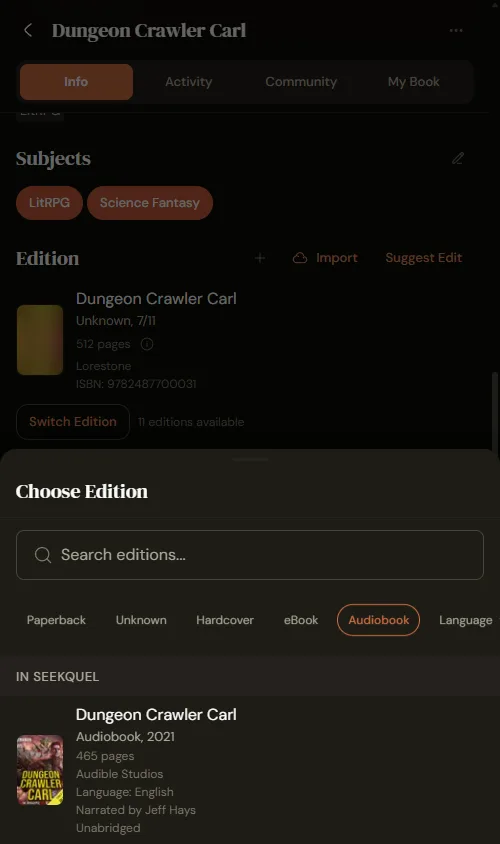
Select it. Back on the book's main page, the audiobook is now the active edition.
Set the book to Reading
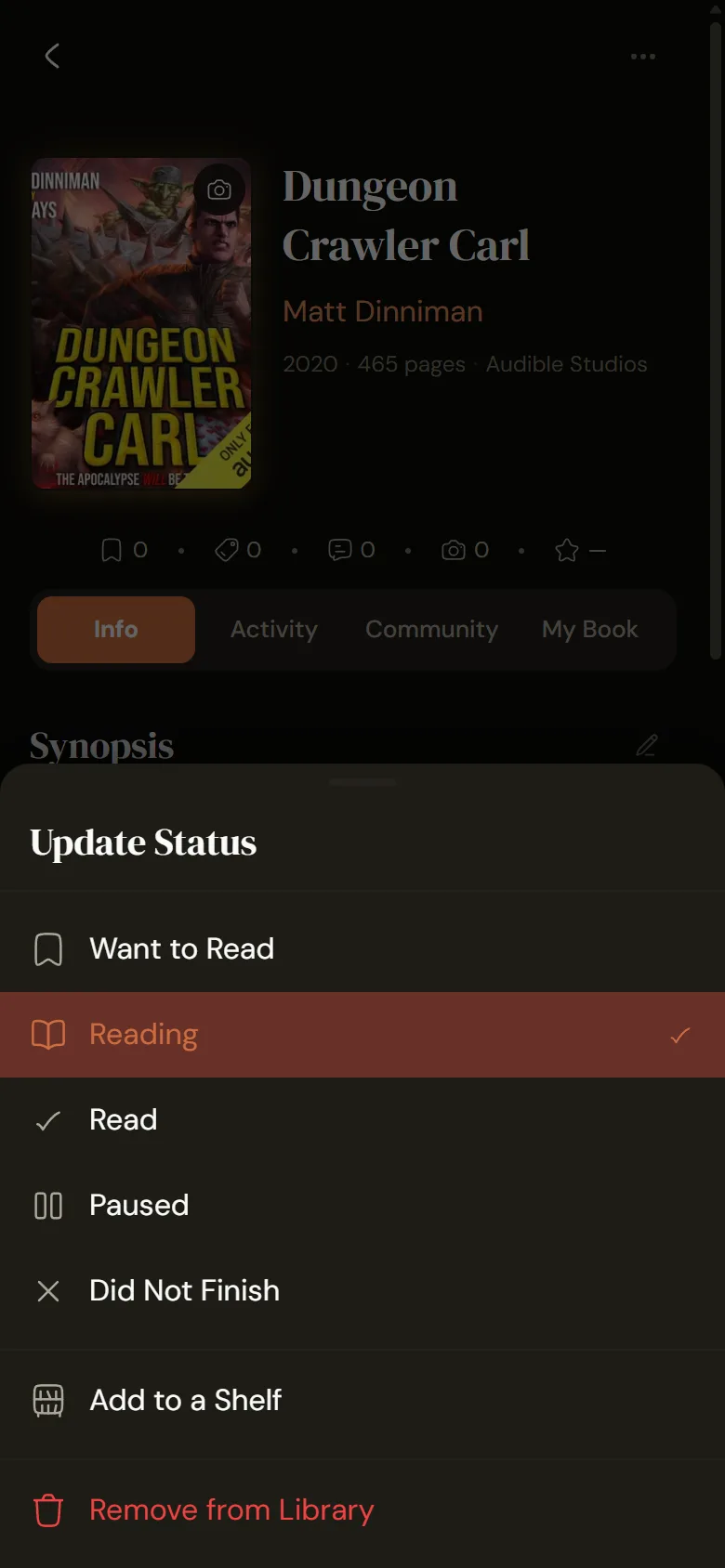
Tap the Reading button on the book's main page. The Update Status sheet opens. Pick Reading.
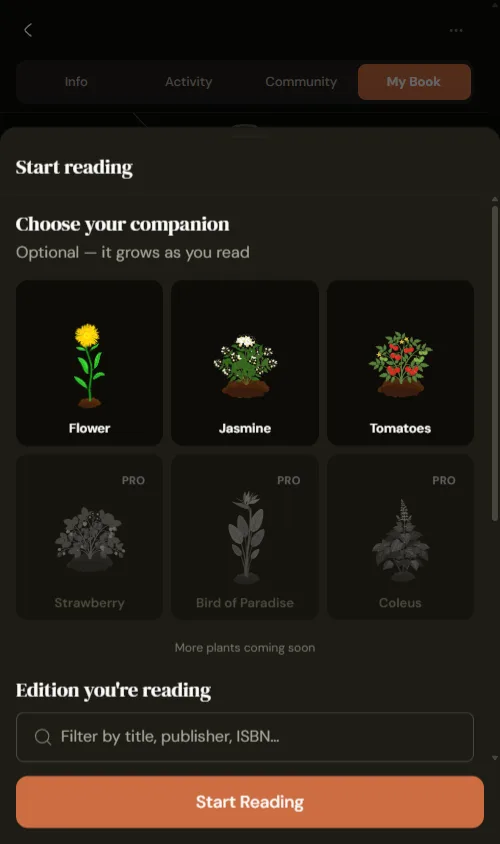
The Start reading screen appears. Choose a companion plant if you want one, then confirm the edition you're listening to. Seekquel pre-selects the audiobook.
Set where you are right now
Tap "I've already started this book." A "Where are you now?" panel opens.
This is the screen that matters for audio. Enter your current position against the total runtime. For Dungeon Crawler Carl example it's 5:30 of 16:45.
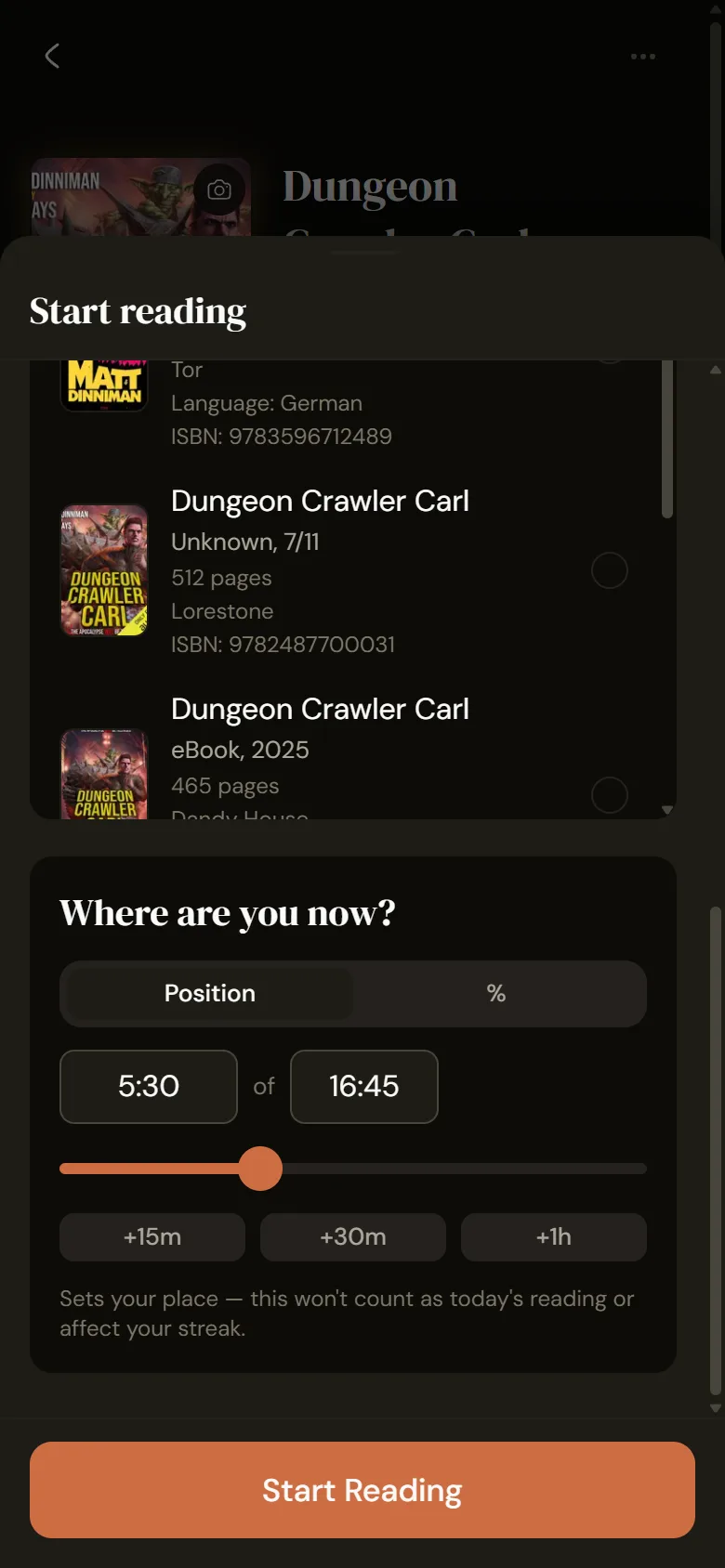
Note the line under the slider. Setting your place here won't count as today's listening or affect your streak. You're marking your position. It doesn't log a session.
Log progress by timestamp
Once you're listening, tap Log Reading to open the Update Progress sheet. The Position tab is the default.
Enter your new position, say 7:15 of 16:45. Seekquel shows the gain since your last update, here +1:45.
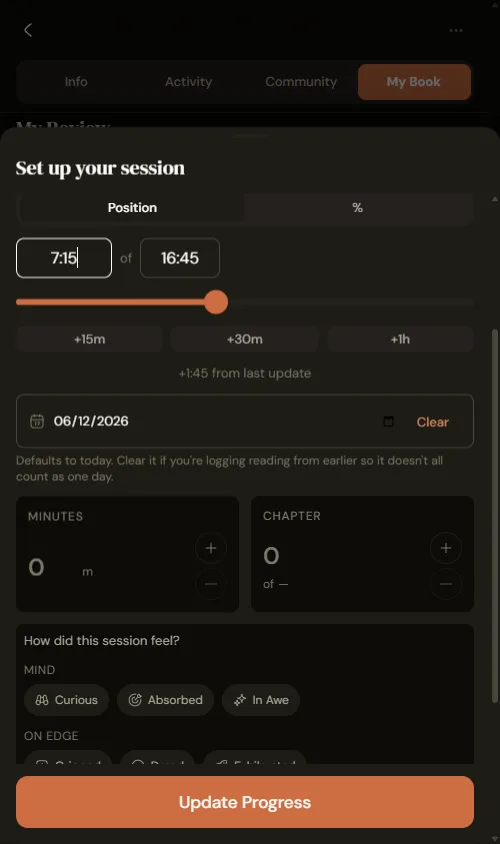
You can also step chapters with the plus and minus buttons. A mood picker lets you tag how the session felt.
Prefer percentage? Switch the tab
Some people don't think in timestamps. Tap the % tab instead.
Now you log by share of the book. For instance, 43% of 16:45, with quick presets for +5%, +10%, and +25%.
Both modes feed the same progress bar. Use whichever number your audiobook app shows you.
Log past listening without skewing your stats
Audiobooks pile up on commutes and chores. Sometimes you log a stretch days after the fact. If every entry counts as today, your daily stats start to lie.
Seekquel puts a Clear button on the Reading date. Clear the date if you're logging from earlier so old sessions don't all count as one day.
Mark it finished, with or without a date
When you reach the end, open that same status menu and pick Read. A "You finished…" card appears with your listening time.
It asks for a finish date, defaulting to today. Listened ages ago and can't recall when? Tap "I don't remember the date."
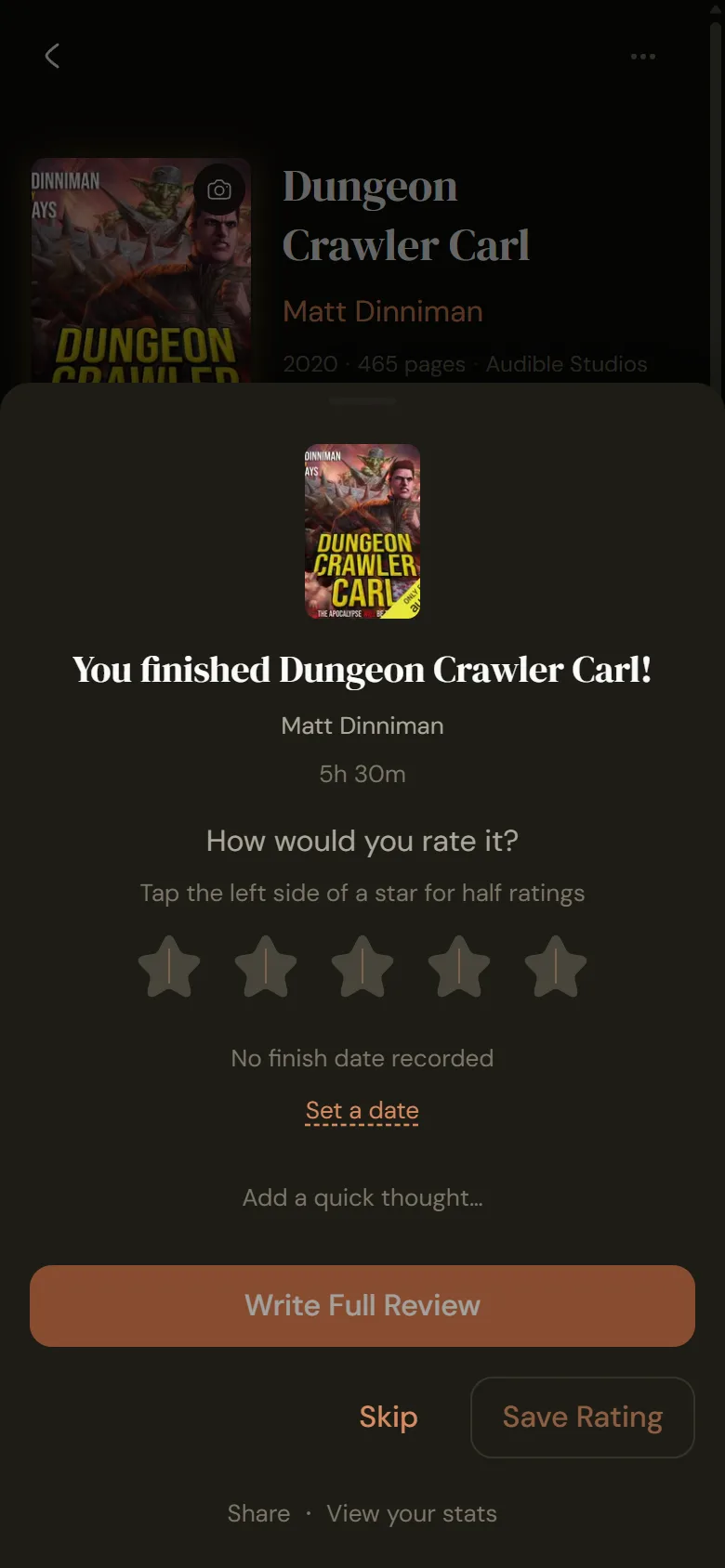
The field switches to "No finish date recorded." So the book counts as read. It won't land in any month or year in your stats. A Set a date link is there if you change your mind.
The short version
Pick the audio edition. Set your spot. Log by time or percent. Clear the date when you're catching up on old listening.
Your stats stay honest, and Seekquel tracks your 17-hour listens like the reading they are.