One reading log for every device you read on
Connect the e-reader, reading app or Calibre library you already use. Each sends what it can to the same books, and every connection is free.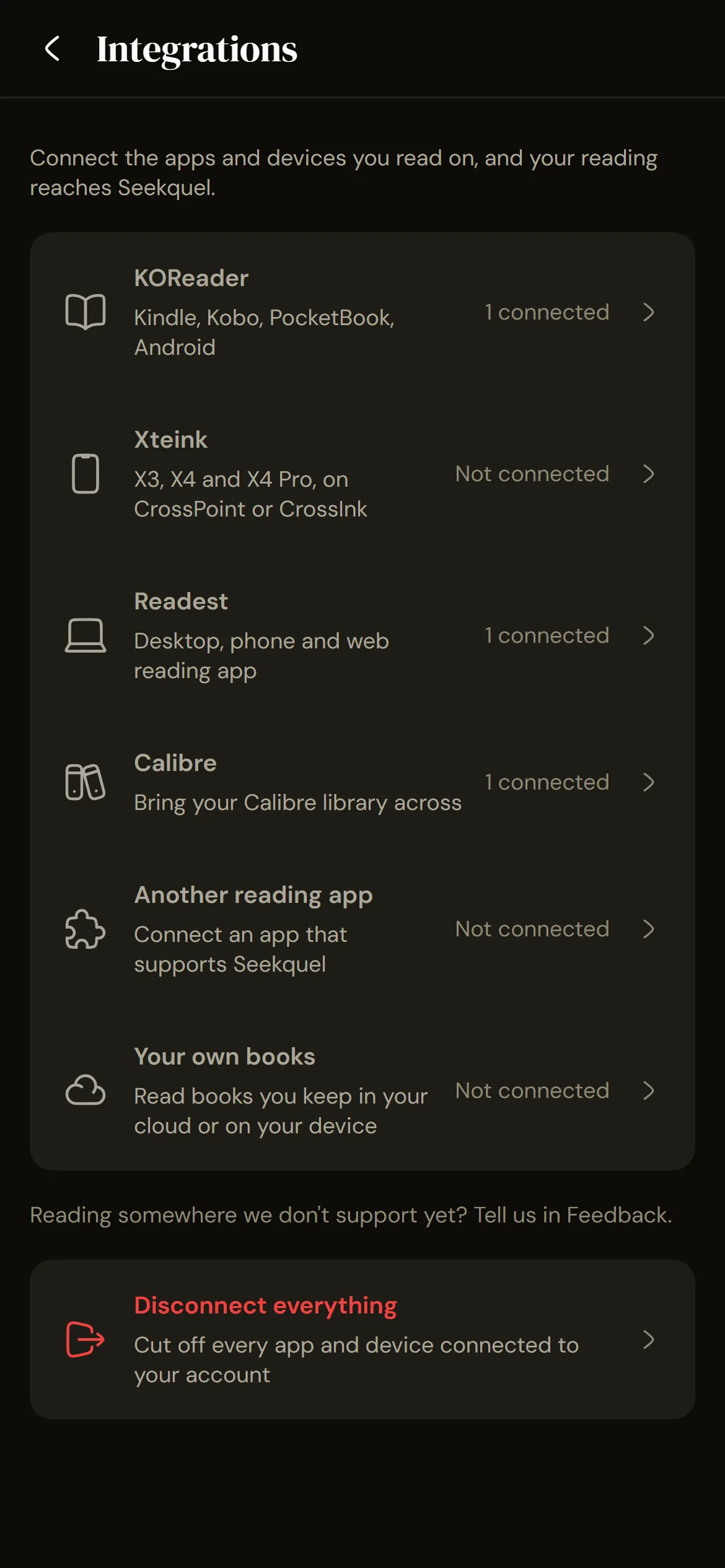
KOReader
Your place, reading time, highlights, and finished books sync from KOReader automatically.Works on
Anywhere KOReader runs: Kobo, Kindle, PocketBook, Boox and other Android readers, reMarkable, Linux and macOS. Install KOReader first; Seekquel does not connect to the Kindle or Kobo software itself.What syncs
- Where you are in the book
- The chapter you reached
- Time spent reading each day
- The hours of the day you read
- Highlights and notes
- Whether a book is being read or finished
- Your rating
Set it up
- Go to Settings, then Integrations, then KOReader, and download the add-on. Unzip it, copy the seekquel.koplugin folder into koreader/plugins on your reader, and restart KOReader.
- On the reader, open Tools, Seekquel, Connect this device. Type the eight characters it shows into Seekquel. Nothing is typed on the e-ink keyboard.
- Read as normal. Your place syncs every twenty pages, when you close a book, when the device sleeps or wakes, and on a timer that starts at fifteen minutes.
Good to know
Free on every account. The add-on updates when you ask it to, from its Seekquel menu in KOReader, and Seekquel's KOReader screen says when a paired reader runs an older version. Reading time is KOReader's count: one page never counts for more than two minutes, and sleep time isn't counted. Days follow your Seekquel account's time zone. Pages are KOReader's count, fitted to the book's length (or the file's, if the book has none), so a new book's first day and a week read offline each land on the right day. Jumping to an index, endnote, or table of contents doesn't move your place until you read a few pages there. Highlights arrive in your notes with passage and comment kept apart; deleting one on the reader leaves it here. If your reader is already tracking a book, the in-app timer warns you before counting the same minutes twice. When one of your own books has no page count, KOReader's count stands in and the book page asks you once to confirm it.Without the add-on
Point KOReader's built-in progress sync at Seekquel to sync your place and nothing else.See howXteink
Sync your place from an Xteink X3, X4, or X4 Pro running CrossPoint or CrossInk, with nothing to install.Works on
Xteink X3, X4 and X4 Pro running the CrossPoint or CrossInk firmware.What syncs
- Where you are in the book
Set it up
- Go to Settings, then Integrations, then Xteink, and create a key. Enter the address and key on the reader, then choose Check connection. Both stay on screen until your first book arrives.
- On the reader, open the sync settings (called KOReader Sync). Enter the address Seekquel shows as the server, your key as the username, and any password. Enter the address with https:// at the start; without it the reader shows Server error.
- Choose Authenticate, not Sign up. Set document matching to Binary and turn on sending document metadata.
- Open a book, press the center button, and choose Sync Progress. The book appears in Seekquel once it arrives. If it asks whether to upload local progress, choose Yes on the reader you last read on.
Good to know
Nothing syncs automatically, so sync when you want Seekquel to catch up. Pages read after a book's first sync count toward your streak. Reading time, highlights, and finished books stay on the reader. If Seekquel sees two files as the same book, open one under Books from your reader to link their progress. You pick the starting copy, and only the percentage is shared, so pages can differ. Name a device from the menu beside it. The reader counts as connected once it sends your place or picks it up from Seekquel. If it has done neither within an hour of setup, the reader's screen in Seekquel says which step is missing.Readest
Sync your place, reading time, highlights, and finished books from Readest on desktop, phone, or web.Works on
Readest on your computer, phone or web browser.What syncs
- Where you are in the book
- Time spent reading each day
- The hours of the day you read
- Highlights and notes
- Whether a book is being read or finished
Set it up
- Go to Settings, then Integrations, then Readest, and create a key. It's shown only this once, and stays on screen until your first book arrives.
- In Readest, open Settings, find the sync section, and choose BookOrbit (the sync method Seekquel answers to).
- Enter the address Seekquel shows as the server, your key as the username, and any password. Readest needs one, but it's ignored.
- Turn on reading progress, highlights, reading statistics, and reading status, then open a book and read a page.
Good to know
Bookmarks stay in Readest. Highlights go one way: passages you mark reach your notebook, but notes written in Seekquel don't go back. Readest sends no page number with a passage, so Seekquel uses its page turns: leave reading statistics on and each passage gets the page you marked it on. If Readest reported nothing at that moment, the passage has no page. Books Seekquel can't recognize wait under Books from your reader, to be linked by hand.Calibre
Sync reading status, ratings, reviews, and reading dates both ways with your Calibre library.Works on
Calibre on Windows, macOS and Linux, through the free Seekquel Sync plugin.What syncs
- Where you are in the book
- Whether a book is being read or finished
- Your rating
- Your review
- The dates you started and finished
Set it up
- Go to Settings, then Integrations, then Calibre, and download the plugin. In Calibre, open Preferences, Plugins, Load plugin from file, and pick the zip.
- Restart Calibre, click the Seekquel button, and choose Connect to Seekquel. Type the eight characters it shows into Seekquel.
- In the plugin settings, map your Calibre columns to what Seekquel reads and writes. Nothing is mapped at first, rating included, and unmapped columns are left alone both ways. If your status column uses your own words, enter them under Status labels.
- To skip manuals and papers, pick a Calibre virtual library or saved search under What to send, and only those books are sent.
- Preview a sync to see what would change on both sides. Then choose Send my whole library, or select books and choose Send the selected books. Bring Seekquel up to date here pulls ratings, reviews, status, and dates back into Calibre.
Good to know
Free on every account. Custom shelves stay in Seekquel and aren't synced. Calibre can't know when you read a book, so your place is set as a starting point and no reading day is logged. An empty field never clears a filled one, and a finished book is never marked unfinished from Calibre. Books Seekquel can't place wait for you instead of being added automatically.Another reading app
Connect a supported reading app with a short code, and your place, reading time, passages, and finished books arrive automatically.Works on
Any reading app with a Seekquel connection. What it sends depends on the app.What an app can send
- Where you are in the book
- The chapter you reached
- Time spent reading each day
- The hours of the day you read
- Highlights and notes
- Whether a book is being read or finished
- Your rating
Set it up
- In your reading app, start connecting to Seekquel. It shows eight characters.
- In Seekquel, go to Settings, then Integrations, then Another reading app, and enter the code.
- Review what the app can and can't do, then confirm.
Good to know
What arrives depends on the app: your place, reading time, marked passages, a rating, and whether you finished. Passages stay private until you share one from your notebook. A connected app can read your library, including your own books, but can't change the shared catalog or see your messages or account details. An app you don't use for 90 days is disconnected; connect it again with a new code. Building an app? Developer docs are linked from the same screen.Frequently asked questions
Yes, and they all send to the same books. Settings, Integrations lists each device with its last sync, and you can disconnect any of them there.
No. Every integration on this page is free on every account.
Not on its own. Seekquel works with KOReader, which installs on Kobo readers and on Kindles that allow it. Seekquel does not connect to the Kindle or Kobo software itself.
Anywhere KOReader runs: Kindle, Kobo, PocketBook, Cervantes, reMarkable, Android, Linux and macOS. KOReader must already be on the device; the add-on does not install it.
No, but you get less. KOReader's own progress sync can point at Seekquel with an address and key typed on the reader. It carries your place, and pages read after a book's first sync count towards your streak, but reading time, finished books and highlights need the add-on. Both share one key and device entry, so adding the add-on later needs no new setup.
From KOReader's own page statistics, not a timer of ours. One page never counts for more than two minutes, a ceiling you can change in KOReader, and time asleep is not counted. Days follow your Seekquel account's time zone, so offline reading lands on the day it happened.
It waits for you. The first time you open a file, Seekquel asks which book it is and remembers your answer. If it is not in the catalogue, it becomes your own private book. No reading time or highlights are sent for an unlinked file, but nothing is lost: your place is held and everything catches up once you answer.
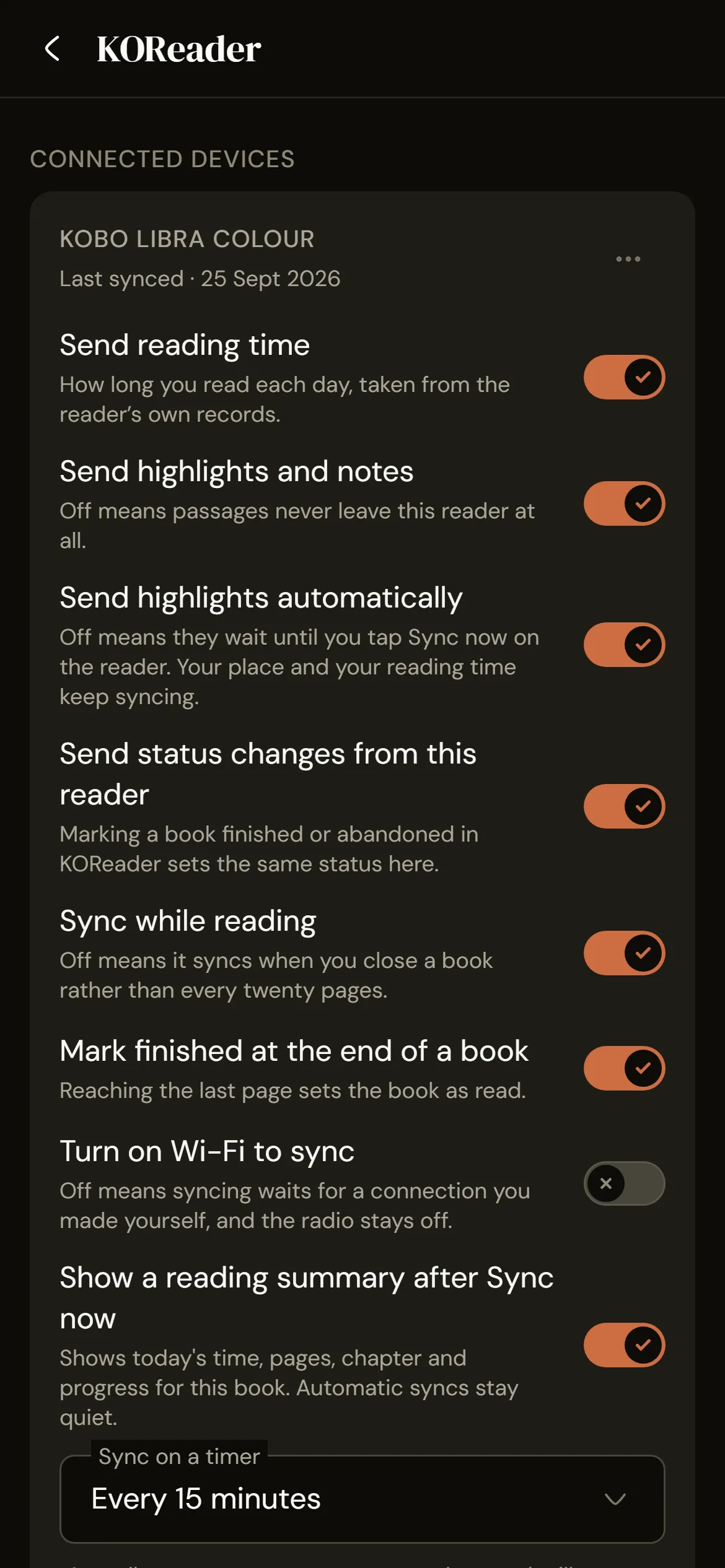
Yes, switch by switch, from the reader or from Seekquel: reading time, highlights, status changes, marking a book finished at the end, syncing while you read, and the sync interval. Turning Wi-Fi on to sync is off by default, so your radio stays off until you connect.
No, but you only copy it once. The Seekquel menu offers each newer version and checks the download before replacing anything, so a dropped connection leaves your copy untouched. It only downloads from the server address that device is set to.
Yes to both. The add-on is AGPL-3.0, like KOReader, and the source is on GitHub. Tools, Seekquel, Server address points it anywhere you like.
Get it on your phone.
Scan the QR or tap a store badge. Free on iPhone and Android.Scan to install