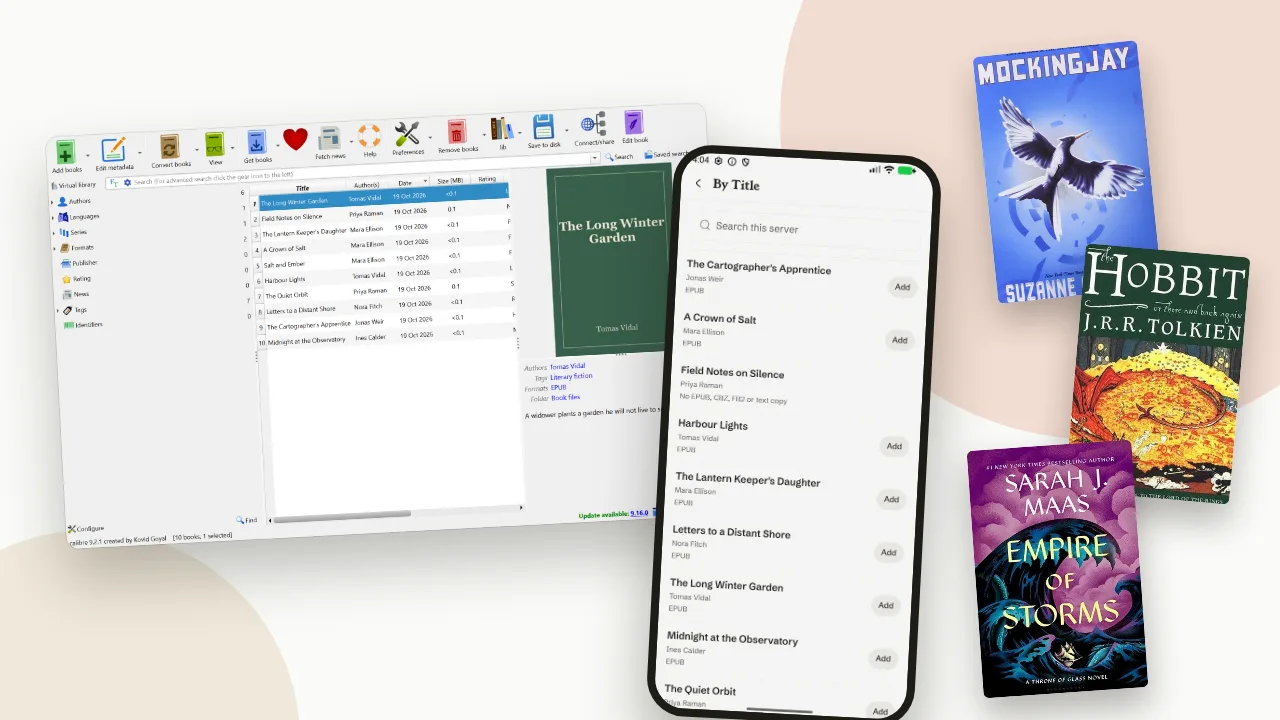
Your books live in Calibre, on a computer at home. You're on the sofa with your phone. It would be nice to grab one without getting up.
Seekquel can do that. Add your Calibre library once. Then browse it from your phone, search it, and add a book with one tap. The book downloads to your phone and opens in Seekquel's own reader.
This post covers the whole thing, from switching on Calibre's server to reading away from home. Set aside about ten minutes.
What you need
- Seekquel Pro. Reading your own books is part of Pro.
- The Seekquel app on your phone or tablet. This doesn't work on the website.
- Calibre on a computer, with your books in it.
- The same Wi-Fi on your phone and your computer. Reading away from home needs one extra step, covered further down.
Seekquel opens EPUB, comic files (CBZ), FB2 and plain text, up to 100 MB each. PDFs don't open in the reader.
First, what is OPDS?
You'll see this word in the app. OPDS is a plain way for a computer to list its books. Apps can read that list.
Calibre does this for you. Seekquel reads the list and shows it as shelves you can tap through. That's all you need to know.
Step 1: Turn on Calibre's server
Calibre has a small web server built in. It's switched off until you turn it on.
In Calibre's toolbar, click Connect/share.
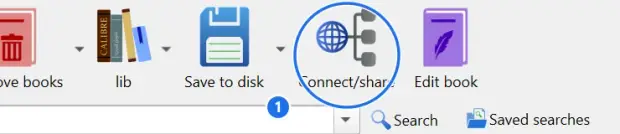
Choose Start Content server. Windows may ask if Calibre can use the network. Say yes for your home (private) network.
Now open that menu again. It says Stop Content server, followed by some numbers in brackets.
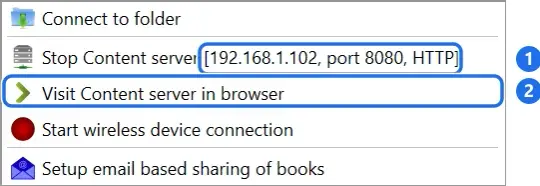
Those numbers are your computer's address on your home network. In our example, the address is 192.168.1.102 and the port is 8080. Yours will differ.
One thing to know: the server only runs while Calibre is open. Close Calibre and your phone can't see your books.
Step 2: Check that the address works
Your full address is those numbers plus /opds on the end:
http://192.168.1.102:8080/opds
Type it into a browser on your phone. You should see a page of text that looks like code. It looks odd, and that's correct. It means the list is there.
If the page doesn't load, the usual cause is your computer's firewall. Allow Calibre through it. Also check that your phone uses the same Wi-Fi as the computer. Mobile data and guest networks won't work.
Step 3: Add the server in Seekquel
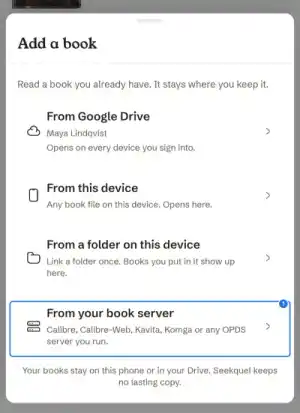
1. Open Your ebooks. Go to the You tab, choose Your ebooks, and tap the + button.
2. Pick your book server. The last option on the sheet is From your book server.
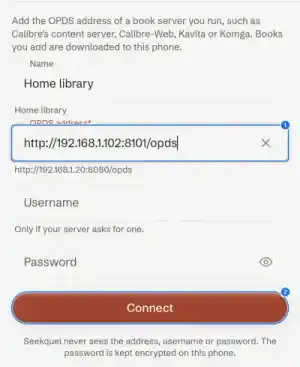
3. Type your address. The name is optional. Leave the username and password empty for now. Tap Connect.
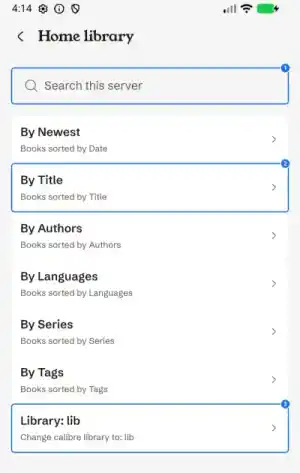
4. Browse. Seekquel shows your library as shelves: newest, by title, by author, by series and by tag. Tap one to open it.
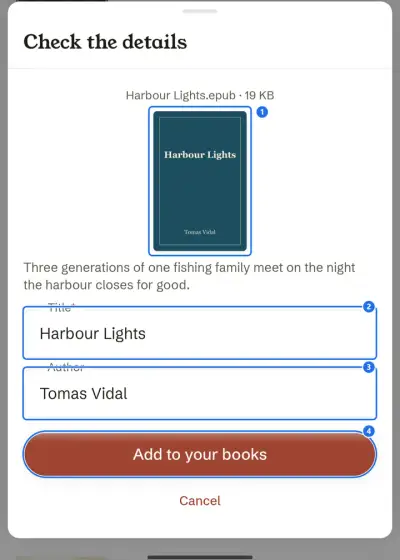
5. Add a book. Tap Add next to a book. Seekquel downloads it and shows its cover, title and author so you can check them. Tap Add to your books.
That's it. The book is on your phone, in Your ebooks. Your place, reading time and notes go into your Seekquel library like any other book.
A PDF-only book shows "No EPUB, CBZ, FB2 or text copy" and has no Add button. In Calibre, select it, click Convert books, and choose EPUB. The new copy appears in your list the next time you open it.
Using a password? Change one setting
Anyone on your Wi-Fi can see your library unless you set a password. To add one, open Calibre's Preferences, then Sharing over the net. Tick Require username and password, then add a user on the User accounts tab.
There's one catch. Calibre checks passwords in a way called Digest. Seekquel understands the other way, called Basic. You need to switch Calibre over.
- In Calibre, go to Preferences, then Sharing over the net, then Advanced.
- Find Choose the type of authentication used and set it to basic.
- Stop the server and start it again.

Back in Seekquel, add the username and password when you connect.
Two tips. First, make a separate Calibre user just for Seekquel and untick the box that lets that user make changes. Seekquel only reads, so it doesn't need more. Second, Basic sends the password as plain text. That's fine on your home Wi-Fi. Anywhere else, use a secure (https) address, like the one in the next section.
If you type a password and Calibre is still on Digest, Seekquel says it "couldn't reach that server."
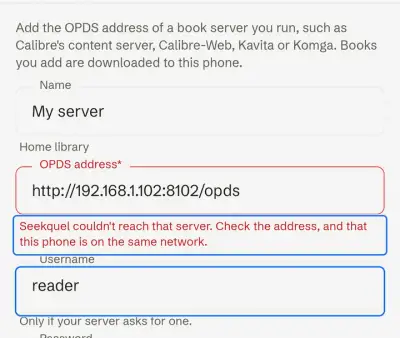
The message points at the wrong problem. If your server is running and the address is right, check that setting first.
Reading away from home
At home, your phone finds your computer easily. Away from home, it has to reach your computer across the internet. You can do that without opening anything on your router.
The easiest route is Tailscale. It links your own devices into a private network, so your phone can reach your computer from anywhere.
- Install Tailscale on your computer and on your phone. Sign in to the same account on both.
- Keep Calibre's server running, with the password and the basic setting from above.
- On the computer, run this command:
tailscale serve --bg --https=443 localhost:8080 - Tailscale gives you a secure address ending in
.ts.net. In Seekquel, add it with/opdson the end.
When you're away, switch Tailscale on in your phone first. Then open Seekquel as usual.
Apple's rules stop apps using plain http addresses away from your home network. The secure address from step 3 is the one to use on an iPhone.
You can also use a web address of your own, with a tool such as Caddy or Cloudflare Tunnel. Two rules apply to any route. Use https, and keep your password switched on. Don't put a sign-in web page in front of the server either. Seekquel can't fill in a web page, so it would stop working.
If something goes wrong
Seekquel shows a message under the address box. Here's what each one usually means.
- "Seekquel couldn't reach that server." Check that Calibre is open and the server is started. Open the same address in your phone's browser. Check that you're on the same Wi-Fi. Then check the firewall, and that the address starts with
http://for Calibre. If you typed a password, see the Digest section above. - "That address isn't an OPDS catalogue." Add
/opdsto the end of the address. - "The server turned down that username or password." Check the spelling and capital letters. Make sure the user exists in Calibre.
- "This server asks for Digest sign-in." Switch Calibre to basic, as described above.
- "Enter the full address, starting with http://." Include the
http://at the start. - "That book is too large to open here." The file is over 100 MB.
If the Connect button keeps spinning, the address isn't answering. Give it a minute, then check the address and the firewall.
Calibre-Web, Kavita and Komga
Other book servers work the same way. You add their OPDS address instead.
- Calibre-Web: your server's address with
:8083/opdson the end. - Komga:
/opds/v1.2/catalogon the end of your server's address. - Kavita: gives each user a personal OPDS address. Look in your Kavita settings.
We tested this with Calibre. These three use the same standard, but we haven't tried them in the app.
What we tested
We ran every step on 19 October 2026. We used an Android emulator, Calibre 9.2.1 and a small test library. We haven't tried it on an iPhone or over a real away-from-home connection yet. If you hit something we missed, tell us.
Want your Calibre ratings and reading dates to travel too? That's a separate plugin. Read One reading log across e-readers for how it works. To see what else the reader does, visit the ebook reader page.